How to Use QVeris in Cursor
Step-by-step guide: install the QVeris extension in Cursor and let your AI call thousands of real tools.
What can Cursor + QVeris actually do?
Many people’s experience with AI today looks like this:
💬 “AI is smart — but it can only talk, not act.”
For example:
- It can analyze markets, but can’t access real-time financial data
- It can plan workflows, but API calls often fail
- It can write code, but doesn’t know which tool to use
QVeris exists to solve exactly this problem.
Our goal is simple:
Enable AI to reliably, affordably, and deterministically call real-world tools and data in a chaotic internet environment.
Once you connect QVeris inside Cursor:
- AI no longer hallucinates data
- You don’t need to manually integrate dozens of APIs
- Agents can complete a full Search → Decide → Act loop
So How to Use QVeris in Cursor ?
Step 1: Install the QVeris Plugin
Open Cursor
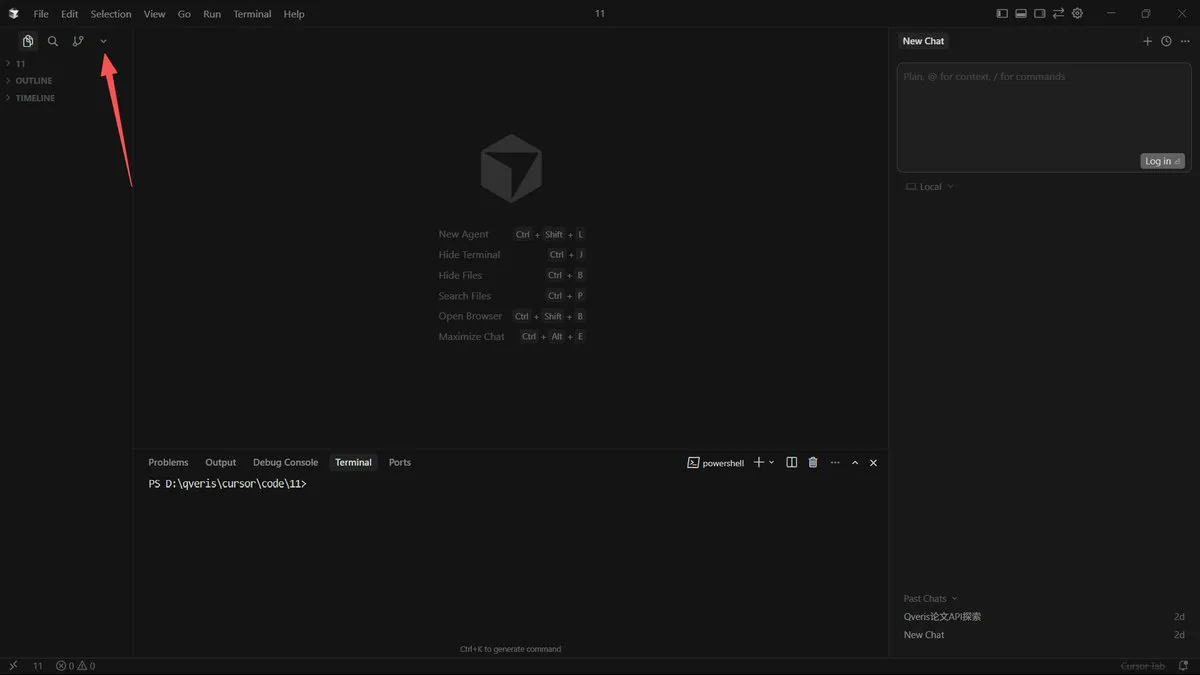
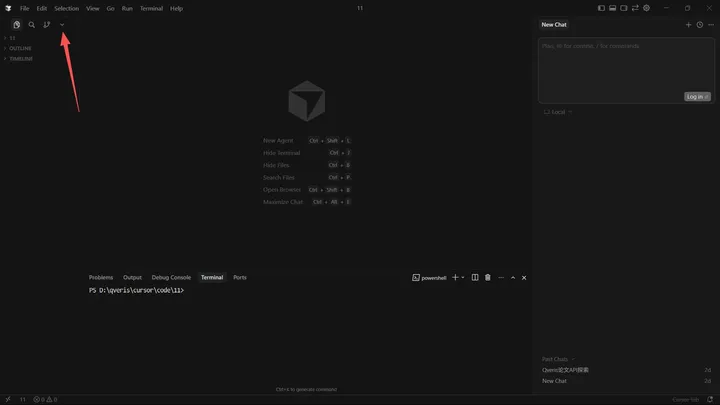
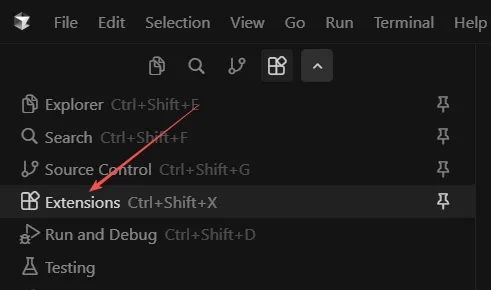
Click the small arrow in the top-left corner to expand the menu,then open Extensions
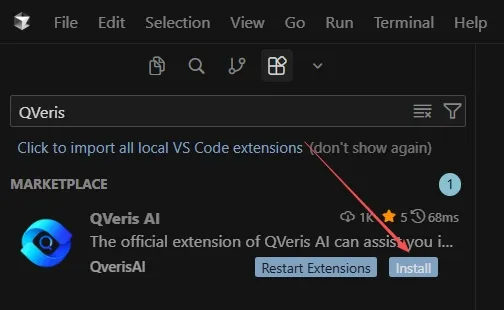
Search for QVeris AI,then clickInstall
Step 2: Register on QVeris and Get Your API Key
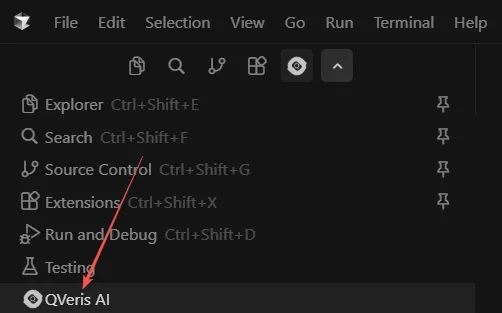
After installation, find QVeris AI again in Extensions
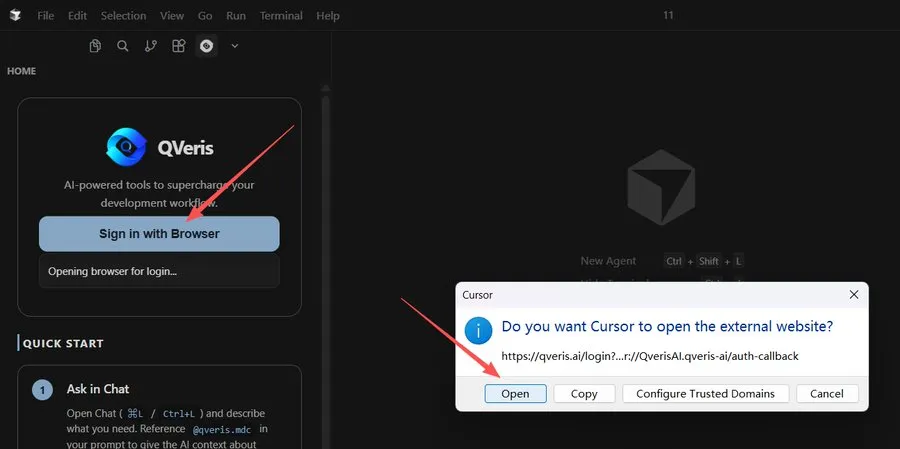
Click “Sign in with Browser”
In the popup, click Open — you’ll be redirected to the QVeris website,then sign up or log in
Generate your API Key
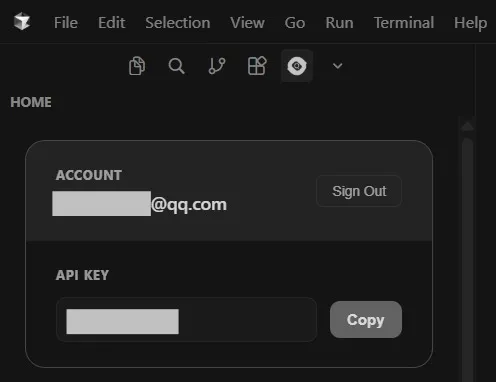
⚠️ Important:
You’ll need this API key when calling tools via QVeris later.
Step 3: Create a Project in Cursor
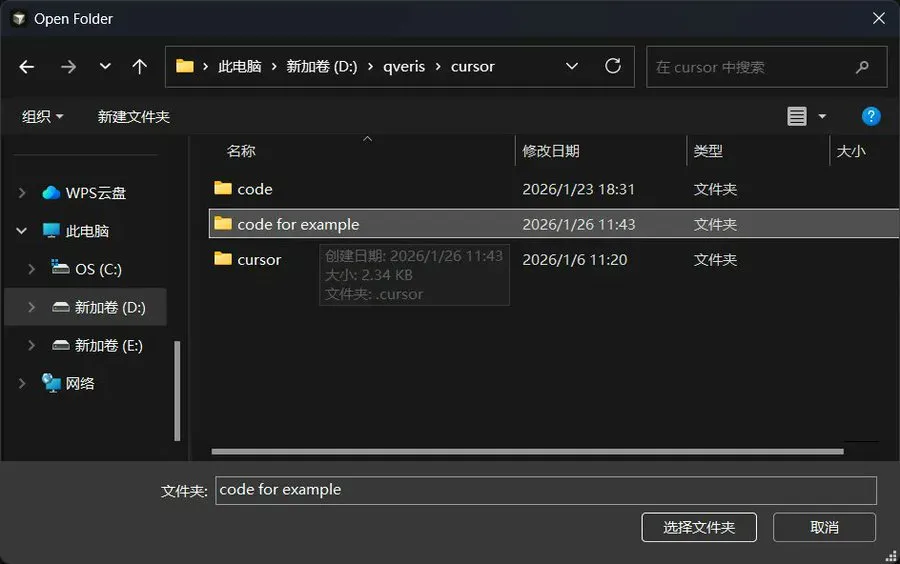
Click File → Open Folder
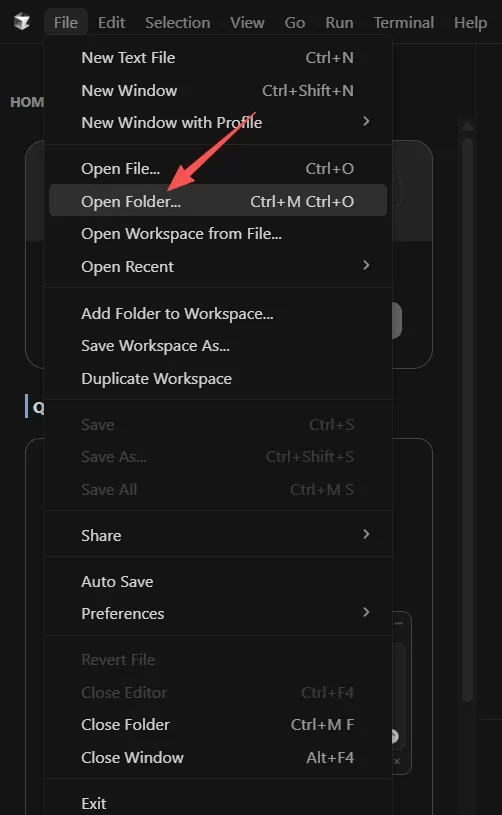
Create a new folder (for example: code-for-example)
Tell the AI What You Want
You can now start chatting with AI in the right panel to build your project.
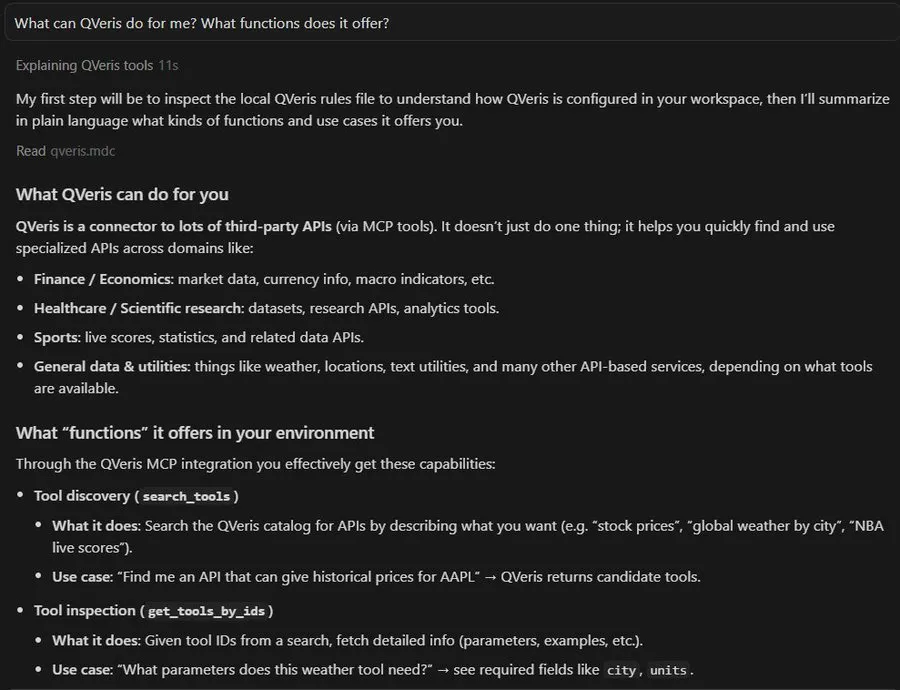
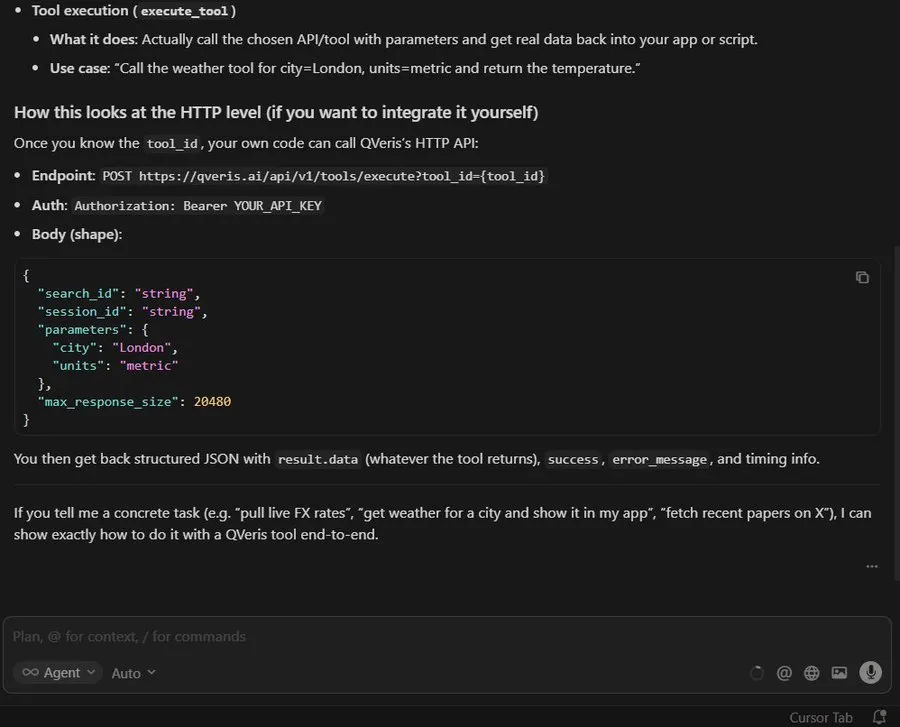
Next, let’s walk through a simple example using QVeris.
In Cursor Chat, try something like:
“Create a web page, collect the latest posts from some Al-relatedbloggers on platform X and display a list.”
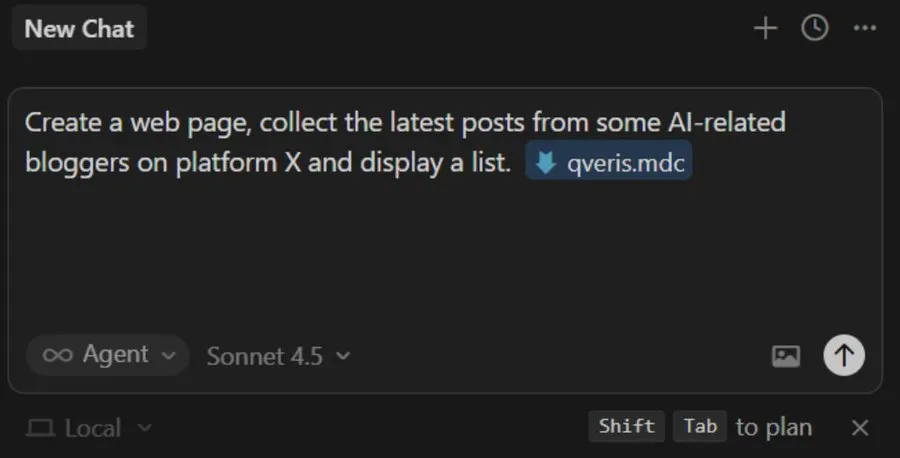
You can expand the response to see which tools were actually called behind the scenes.
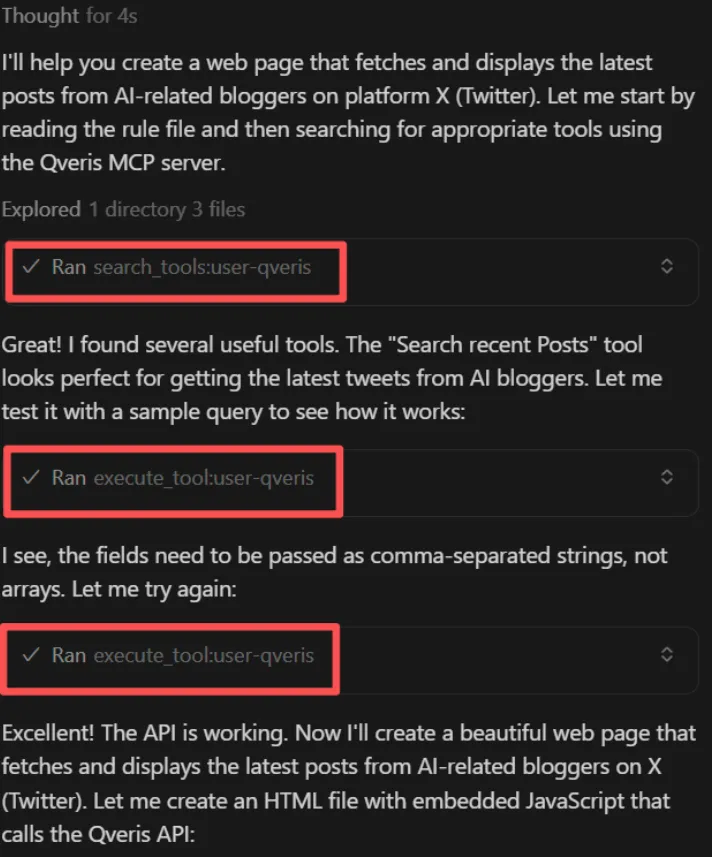
When using QVeris inside Cursor, make sure to:
This tells Cursor that the agent should execute real-world tools, not just generate text.
Cursor vs QVeris: Different Roles, One Workflow
- Cursor solves: how AI writes better code
- QVeris solves: how AI actually does things in the real world
When you connect them together:
You’re no longer just writing code — you’re building agents that can take action.